Dedicated USB ports malfunction and USB 2.0/3.0 ports stuck on display port 4

Hi,
Received a new DKS402-P23-USBK from Amazon today.
After all setup and connections, I realize the dedicated Keyboard and Mouse ports are dead (or not recognize any device… I try various wired keyboard's and mouse's, also, a wireless Logitech M220)
After that, I connect my keyboard and mouse on USB 2.0/3.0 ports, but, they are stuck on display port 4, even if image are displayed on correct ports (1/2/3/4).
I check if any firmware update to solve my KVM issue, but no find anything.
Try factory reset, even without usb B cables connected, but issue still persists.
Open a ticket (ID 34974) but, as I read here, this “community hotline” appears to be more reliable and fast than the support team.
Any help?
-
正式なコメント

Hello,
Regarding the issues you reported, please follow the instructions below to help us identify the cause and assist you further:Issue 1: Dedicated Keyboard and Mouse Ports Not Working
Please check the following steps:
1. Hotkey Test (to verify if the keyboard is recognized by the KVM)
Connect your keyboard to the dedicated keyboard port on the back of the device. Then, press the following key combination twice in a row:
Right Ctrl + Right Ctrl + F11
This hotkey toggles the buzzer sound. Pressing it once may not produce any sound, so please execute it twice in quick succession.
- If you hear a beep, it means the dedicated keyboard/mouse interface is functioning properly.
- If there is no response, it could indicate either an incompatibility with the keyboard or a hardware fault with the interface.
2. Check if the computer detects the virtual keyboard/mouse
Make sure a USB-B cable is connected between the KVM and the computer.
Then, on the computer, navigate to:Settings → Bluetooth & devices → Devices
Check if a device named HKS402-P23 appears in the list. This name represents the KVM’s virtual keyboard and mouse interface. If it doesn't appear, the data connection may not be established properly.
3. Provide the keyboard and mouse model information
Please let us know the brand and model of the keyboard and mouse you are using, so we can help verify compatibility.
Issue 2: USB Devices Always Remain on Host 4
1. USB focus does not switch automatically in mixed-display mode
The device supports Mixed Display Mode, which allows two monitors to show output from different computers simultaneously.
In this mode, switching video input does not automatically switch USB focus (keyboard/mouse control).
To change which host the keyboard and mouse control, you need to press one of the 1–4 input buttons on the front panel to switch the active USB focus.
2. Keyboard/Mouse focus hotkey only works with dedicated ports
The keyboard/mouse focus switch hotkey (Double-tap Right Alt) only works when your keyboard and mouse are connected to the dedicated keyboard/mouse ports on the KVM.
If your keyboard and mouse are connected via the USB 3.0 port, using this hotkey will not trigger any response. This is expected behavior.
3. Check if USB focus is locked
Look at the KVM’s front LCD display and check whether a lock icon appears in the lower-right corner of the USB indicator.
If the USB focus is locked, press the [USB Lock] button (USB switch key) and then press the [SET] button to unlock it.
- Once unlocked, try switching USB focus again using the front panel buttons.
If the issue persists after following the steps above, feel free to contact us again for further assistance. We appreciate your cooperation and support!
-
Hi, thank you for fast response.
1.1) Can't hear the beep.
Try with 3 regular wired keyboard
- Lenovo KU1601
- HP KUD0133
- Microsoft Wired Kwyboard 2001.2) No device HKS402-P23 detected
2.1 - 2.2) Have only one monitor connected, but it change normally, by input buttons, and show pc image accordingly.
Only not change keyboard/mouse.
Don't gain focus, from dedicated keyboard/mouse ports, and other USB2.0/3.0 ports.
Tested with both ports (dedicated and normal) connected, and only dedicated.
2.3) Nothing it's locked.
I also try lock and unlock procedure to test, with same results.
If you have more tests and procedures, please let me know.
Thank you0 -
One more visual perception.
Keyboards connected on dedicated USB ports, does not light NUM LOCK as, it must be usual.
Like no power on that USB ports.
I test upper and bottom ports.0 -
Hello Paulo,
Thank you for your reply and continued patience.
To help further identify and resolve the issue, please follow the steps below for testing:
- Check USB 3.0 Port Behavior (Currently Locked to PC4)
- Please verify whether the computer connected to PC4 port can recognize the keyboard and mouse in the current state.
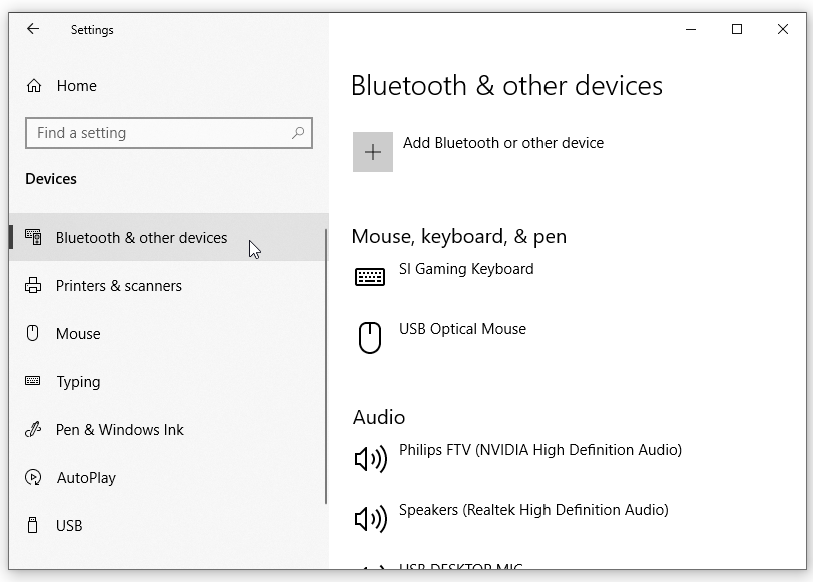
- Additionally, please try connecting the keyboard and mouse to the USB 3.0 port, and then switching the KVM to PC4 to confirm if it can properly control PC4.
- Connect a Different Computer to PC4 Port
- Please try swapping the connection between PC1/PC2/PC3 and PC4, to confirm whether the issue is related to the specific computer previously connected to PC4 or the PC4 Port
- Check if the keyboard/mouse connected to the USB 3.0 are recognized now by the new computer and functioning as expected.
- Perform Firmware Upgrade
To rule out firmware-related issues, please follow the instructions and run the upgrade tool available here:
👉 Firmware Upgrade – HKS402-P23
- Replacement Option
Please rest assured that, If the issue still persists after completing the above steps, rest assured — we’ll have our service team arrange a replacement unit for you to avoid further disruption.
Should you have any questions or need further assistance, please feel free to contact us anytime. We're here to help and ensure everything runs smoothly for you.
0
サインインしてコメントを残してください。
コメント
4件のコメント